How it works
WikiFix watches the Confluence spaces you care about and tells you when their pages stop agreeing with each other or go stale. You pick the spaces, WikiFix scans them on a schedule, and a dashboard shows you each space’s health at a glance. When something needs attention, you resolve it in a few clicks — or hand it to whoever owns the page.
There are three ways to use it, and they share one engine:
- Monitor the health of your spaces — set it once, and WikiFix keeps watch on a schedule.
- Get a digest — a daily, weekly, or monthly summary of what changed, in your inbox.
- Run a scan on demand — check a set of spaces right now.
And on every page, everyone sees the issues WikiFix found there — anyone who can edit the page can resolve them in place.
Nothing here changes a page without your explicit click. Scans are read-only.
1. Monitor the health of your spaces
Section titled “1. Monitor the health of your spaces”This is the heart of WikiFix. You choose the spaces worth watching, and WikiFix scans them on the cadence you set — daily, weekly, or monthly — without you having to remember to.
The health dashboard
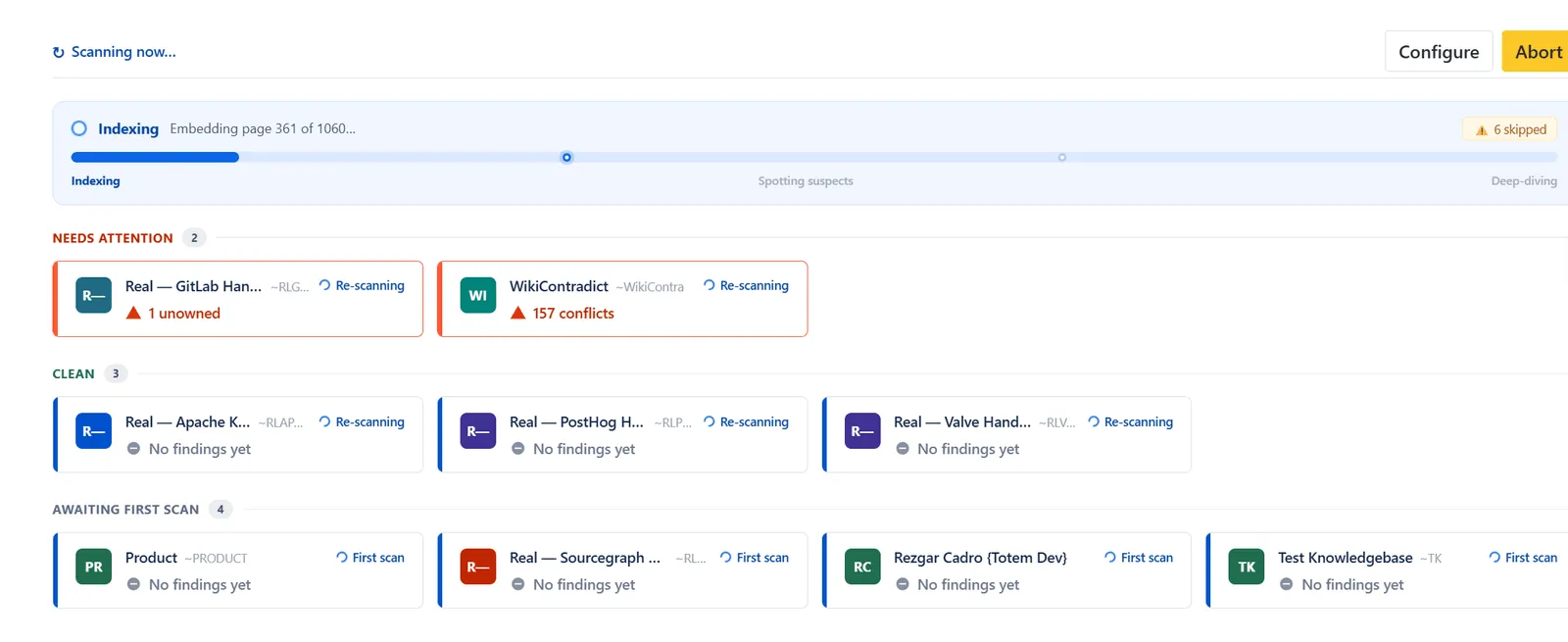
Section titled “The health dashboard”The monitoring dashboard shows a card for every space you watch, sorted by what needs you most:
- Needs attention — the space has open findings. The card shows the breakdown, like “157 conflicts” or “1 unowned”.
- Clean — scanned, nothing wrong.
- Awaiting first scan — added but not yet swept.
A space that’s mid-scan shows its progress right on the card. You set the spaces and cadence once from Configure; after that it runs itself.
Resolving what it surfaces
Section titled “Resolving what it surfaces”For a space that needs attention, you open its findings and work through them. Most you’ll know the answer to — those resolve in one or two clicks. The ones you don’t, you pass to the person who does. Each finding gives you the same actions described under Findings below.
2. A digest on your cadence
Section titled “2. A digest on your cadence”You don’t have to keep checking the dashboard. Set a scan to daily, weekly, or monthly, and WikiFix emails whoever started it a digest each time it runs — where things stand since last time.
Each digest carries:
- The running total of open issues, and the net change since your last scan — “7 more” or “2 fewer,” for instance.
- A breakdown by space — every space the scan watches, by name.
- A link straight to the dashboard, so you’re one click from acting.
When a scan comes back quiet, the digest still arrives — an All clear, so you know the watch is running and your spaces are healthy. Digests carry counts and space names only, never the text of your pages.
3. Run a scan on demand
Section titled “3. Run a scan on demand”Sometimes you don’t want to wait for the schedule — you just shipped a big doc change, or you want to check a space before a launch. Start a scan over the spaces you pick and it runs right then.
A scan reads with the app’s own access, granted by your Confluence admin at install — not the scan starter’s personal permissions. The space picker shows each space’s page count, because scans cost credits for every page analysed; keep the scope focused on the spaces that need checking.
A scan runs in the background. Findings stream in as they’re produced, so you can start reading before the run finishes.
On every page
Section titled “On every page”Every page carries a WikiFix item in its byline, under the title, in one of three states: No issues (green check) — scanned, nothing open; N issues found (red badge) — scanned, open findings; or Not yet scanned (grey) — never scanned, or edited since the last scan. The grey state exists so an un-analysed page doesn’t read as a clean bill of health. It’s recomputed each time the page renders, against the live version, so anyone reading the page sees the real status without opening the dashboard.
Open the badge and the page’s findings are right there. Anyone who can read the page can see them; anyone who can edit the page can resolve them in place, without leaving the page they’re on.
Findings, and how you resolve them
Section titled “Findings, and how you resolve them”When two pages disagree about a fact, WikiFix frames the disagreement as a question — say, “What is the maximum upload size?” — and lists each page’s answer beside it, quoted verbatim and linked to the exact passage. You see what the pages actually say, not a score. A departed-owner finding flags the page and offers to reassign the owner.
Three kinds of finding exist today, and each resolves differently. What WikiFix catches — and what it doesn’t yet is the full list, including what’s being built next.
- Pages contradict each other — shows the clashing excerpts side by side. WikiFix extracts the individual facts each page states; deciding two of them disagree is a fixed rule, not an AI judgment call, so the same facts always produce the same result.
- Duplicate and near-duplicate content — shows which parts are unique to each page. Pick the page and unique facts that survive; WikiFix folds the parts you choose to keep into it and replaces the other page’s body with a short note pointing to the one you kept. The other page stays live at its own URL, so nothing that links to it breaks.
- The page owner has left — flags pages whose owner has left your organisation, so you can reassign them before they go stale. This check reads user status, not page text, so it re-assesses every in-scope page on each scan.
Each finding gives you three actions:
- Apply — pick the correct answer and WikiFix rewrites every page that disagrees. The edit is made as you, so it shows in page history like any other edit. For a departed-owner finding, Apply updates the page’s owner instead of its text.
- Ask owner — not your call? WikiFix posts a comment on the page, anchored to the passage in question, @mentioning the page owner and the space’s admins, and hands the decision over: the finding leaves your active list for the Escalated tab until someone settles it.
- Not a problem / Ignore — a deliberate difference, or not worth fixing right now. It disappears from this scan and stays gone on later runs of it. Ignoring costs you nothing: it only affects the scan you’re in, another scan over the same pages still surfaces it, and if the disagreement changes it comes back as a new finding.
Applying or reverting a fix needs write access to that page. Anyone who can read the page can see its findings.
Before an Ask owner comment posts, WikiFix checks the anchored passage is still on the page — a content match, not a page-version check, so an unrelated edit elsewhere on the page doesn’t block it. If the passage is gone, it posts nothing and flags the page as changed since the scan, so a comment never points at text that’s already gone.
Stay reversible
Section titled “Stay reversible”Content fixes revert in one click — Confluence page history keeps the full before/after too, since every fix is an ordinary page edit. A page can drift between apply and revert: if it changed in the meantime, WikiFix restores what it still can and says so plainly — “Reverted X of Y pages — the rest could not be restored,” or “Nothing could be reverted” if none of them still match.
Reassigning a departed owner reverts only once the previous owner is active again. While they’re still gone, handing the page back isn’t a real state to restore to — that’s exactly why the finding fired — so Revert leaves the reassignment in place and says why.
What credits pay for
Section titled “What credits pay for”Your Atlassian subscription converts into scan credits — the unit the scanner spends. Credits pay for two kinds of work: finding issues, and fixing them. Each finder charges scanning by its own unit:
- The Conflicts across pages finder charges for the AI work that reads each page and builds its fact graph — not for the comparison itself, which is a free, deterministic rule rather than an AI call.
- The Duplicate pages finder is unmetered at scan time — it matches pages by comparing facts already on file, with no AI call in the scan itself, so it never charges credits to find a duplicate.
- The Departed owners finder charges a flat rate per finding it raises — no findings, no charge.
Applying a fix costs credits too, on any finding an AI model rewrites: the apply-time rewrite that edits your page’s text — including a duplicate-pages merge’s pointer note — is a separate, metered LLM call, charged when you click Apply. If you’re on your own Anthropic key, it runs on your key and costs no credits, exactly as scanning does. Applying a departed-owner reassignment is free either way — there’s no AI call, just an owner change.
Everything else is free: browsing the dashboard and your scans, reverting, asking the owner, the page badge, and the digest.
The exact per-check credit rates are set centrally and shown live on the in-product credits screen. The full mechanics — what each plan covers, the trial, and bring-your-own-key — are on Credits & capacity.
Configuration
Section titled “Configuration”Every knob this loop exposes — the spaces and schedule you monitor, the digest, in-app notifications, the scan-completion email, and the admin-console settings — is documented in the configuration reference.