Configuration reference
There isn’t much to configure. This page is the reference for the handful of things you do set, split by who does them:
- Monitoring & scanning — the day-to-day controls: which spaces you watch, how often, the digest, in-app notifications, and the scan-completion email. Anyone who can run scans manages these.
- Admin console — the install-time and instance-wide settings an instance admin manages in WikiFix Admin: the permissions granted at install, and your edition and bring-your-own-key.
For the loop these settings drive, see How it works.
Monitoring & scanning
Section titled “Monitoring & scanning”These are the operational controls — what you reach for as you watch your spaces and act on findings.
Spaces and schedule
Section titled “Spaces and schedule”You monitor a set of spaces by configuring them on the monitoring dashboard: pick the spaces, and choose how often WikiFix scans them.
| Field | What it does |
|---|---|
| Spaces | The spaces to watch. There’s no “all spaces” mode; you pick spaces explicitly, and a scan never reads outside them. |
| Frequency | Daily, Weekly, or Monthly for a scheduled watch; Manual keeps the space on the board but only scans when you start it. |
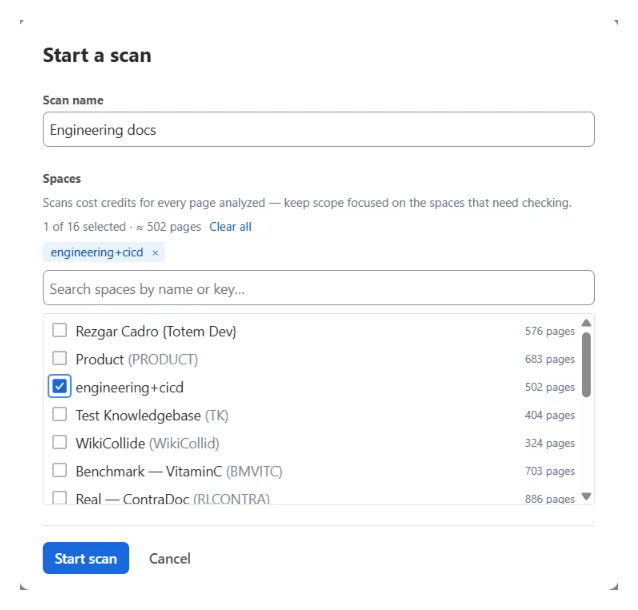
You can also start an ad-hoc scan — a saved scope you re-run on demand — from the Scans tab. The form takes a name and the spaces to scan. Every scan runs every enabled finder, and starts out on demand; you can give it a schedule afterwards from the scan’s own settings.
Scope and cost
Section titled “Scope and cost”The space picker shows each space’s page count and an always-on note that scans cost credits for every page analysed. If your selected spaces add up to more than 10,000 pages, it raises an advisory warning — large scans can consume a lot of credits. The warning never blocks you; it suggests tightening scope or splitting into separate scans.
Scheduled runs
Section titled “Scheduled runs”A scheduled watch runs on its own. A background dispatcher checks for due scans every few hours and starts any that are due; after a scheduled run finishes, the scan becomes due again one day (daily), seven days (weekly), or thirty days (monthly) later. Manual and on-demand scans only run when you start them.
A scheduled run is skipped silently if the Confluence authorization of whoever set it up has lapsed — the scan stays due and runs on the next sweep once they re-authenticate.
Capacity
Section titled “Capacity”WikiFix runs one scan at a time per site. If you start more, the extra runs queue and start in order as the running one finishes — first started, first served. A queued run shows as queued, not running, until its turn comes.
In-app notifications: the page badge
Section titled “In-app notifications: the page badge”Every page carries a WikiFix item in its byline, under the title. It reads “No issues” with a green check, “N issues found” with a red badge, or “Not yet scanned” in grey when the page hasn’t been analysed at its current version — recomputed each time the page renders. That third state matters: a page WikiFix hasn’t read yet never gets a clean bill of health it hasn’t earned.
Ask a page owner to decide
Section titled “Ask a page owner to decide”Ask owner is a per-finding action, not a scan-wide setting. Choosing it posts a Confluence comment anchored to the passage in question and @mentions the page’s owner and the space’s admins. WikiFix resolves each role to people still active on your site at that moment, so a departed or unlicensed person is never @mentioned.
It hands the decision over rather than nudging: the finding leaves your active list for the Escalated tab and stays there until someone settles it. There’s no automatic version of this — it’s always a deliberate, per-finding choice.
If the passage changed since the scan, nothing is posted and WikiFix asks you to re-scan, so a comment never points at text that’s already gone.
Email: digest and scan-completion
Section titled “Email: digest and scan-completion”How WikiFix emails you after a scan depends on how the scan was triggered:
- A scheduled daily, weekly, or monthly watch sends a digest — the running total of open issues, how that’s changed since the last scan, a per-space breakdown, and a link to the dashboard. A quiet scan still sends an All clear.
- A manual or on-demand scan sends a completion notice instead — the scan name, the number of new issues, and a link to the Scans tab.
Either way, only the person who set the scan up is emailed, and there’s nothing to configure: the email is sent on every terminal outcome.
You get an email when a scan finished, failed before finishing, stopped because credits ran out, or was stopped (aborted) before finishing.
Two things have to be in place for any of these emails to send:
- The app needs the email-address permission on your site. The
read:email-address:confluencescope is granted at install. Until a site consents to it, the owner’s address can’t be looked up and the email is skipped (the scan itself is unaffected). - The owner needs an email address Atlassian will return. If the account is gone or Atlassian holds no address, there’s nothing to send to and the email is skipped.
When an email can’t be sent, WikiFix records why on the run and moves on — a missing email never affects the scan or its findings. The address is resolved at send time and never stored; the run log records that an email went out, not where. The start-a-scan form warns you upfront if your own address can’t be resolved.
Admin console
Section titled “Admin console”These are the install-time and instance-wide settings. They live in WikiFix Admin and are managed by a Confluence instance admin, not by everyone who runs scans.
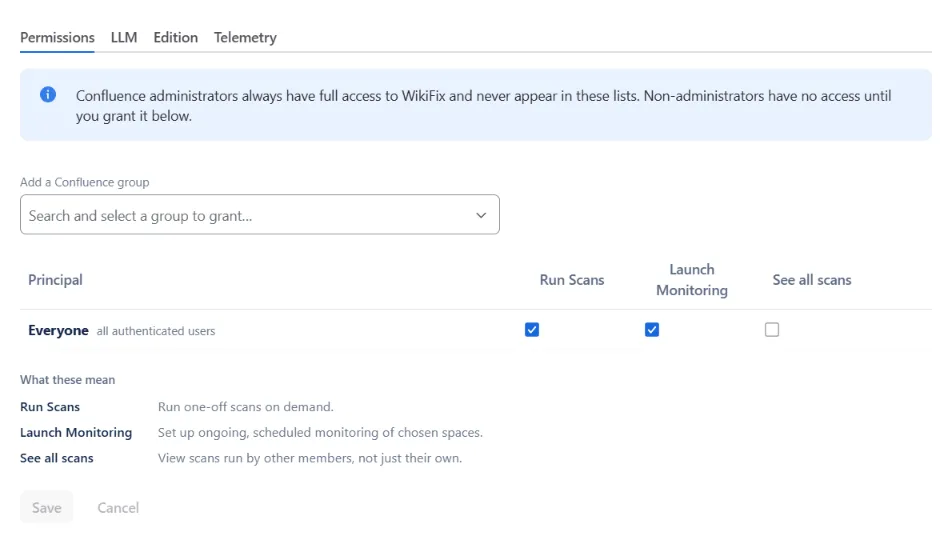
WikiFix Admin has four tabs: Permissions — which Confluence groups can run scans, launch monitoring, and see scans other people started — plus LLM, Edition, and Telemetry. Confluence administrators always have full access and never appear in the permission lists.
Permissions and scopes
Section titled “Permissions and scopes”Your Confluence admin grants these scopes once, at install. They’re declared in the Forge manifest, which is public on the Marketplace listing, so you can verify the list rather than take our word for it.
| Scope | What it’s for |
|---|---|
read:confluence-space.summary, read:space:confluence | List and read the spaces you scope a scan to. |
read:page:confluence | Read page content during a scan. |
write:page:confluence | Used only when you apply a fix — rewriting page content, or updating the owner on a departed-owner finding. |
read:comment:confluence, write:comment:confluence | Used only when you ask an owner to decide — that posts a regular Confluence comment. |
read:content.metadata:confluence | Read a page’s metadata. Confluence requires it alongside write access for its page-archive endpoint. |
read:user:confluence, read:group:confluence | Resolve who owns a page, who has left, and a user’s group membership (so group-based permission grants match the right people). |
read:content-details:confluence | Recognise which users are Confluence admins, so admins aren’t misdetected as ordinary users. |
read:email-address:confluence | Resolve the address of whoever set the scan up, to send the digest or completion email. Addresses are fetched at send time and never stored. |
read:app-system-token, read:app-user-token | Let the app’s backend authenticate its own calls. They grant no additional access to your content. |
storage:app | Remember, per person, that we’ve already asked you once for a Marketplace review — so we don’t ask twice. |
Two things bound what any scan can reach: the spaces selected (a scan never reads outside them), and the app’s own authorization, which your admin can restrict further with Atlassian’s app-access controls.
For where your data lives and what’s stored versus processed transiently, see Security & data.
Edition and bring-your-own-key
Section titled “Edition and bring-your-own-key”The Edition panel in WikiFix Admin shows your current edition (Standard or Advanced) and your last Marketplace payment, with a link out to Atlassian to change it. WikiFix never processes the edition change itself — you self-switch on Atlassian’s side, and this panel catches up within a few hours. See Editions & plans for what each edition includes and the step-by-step upgrade.
On the LLM tab, a paid Advanced tenant can add a bring-your-own-key Anthropic API key, so the AI work runs on the tenant’s own Anthropic account instead of drawing down scan credits — both scanning and the apply-time rewrite that authors a fix. A toggle controls whether scans spend remaining credits first and fall back to the key, or use the key exclusively. Standard tenants see an upgrade prompt here instead, as do tenants still inside Atlassian’s 30-day evaluation.
Where to go next
Section titled “Where to go next”- How it works — monitoring, the digest, ad-hoc scans, and the page experience.
- Editions & plans — Standard vs Advanced, the trial, and how to upgrade.
- Credits & capacity — what a credit buys, plan allowances, the trial, and bring-your-own-key.
- Security & data — what’s stored, what’s processed transiently, and where it lives.
- FAQ — the questions we expect.
Anything these don’t answer: support@wikifix.ai.