Getting started
Install
Section titled “Install”- Install WikiFix from the Atlassian Marketplace.
- Open it from Apps → WikiFix. The first time anyone does, a short wizard explains what WikiFix does, then hands you one interactive step.
- Pick the spaces to scan and click Start monitoring or Scan now — that starts a scan right there.
Skip the wizard if you’re not ready; you can start a scan the same way later. Atlassian’s standard 30-day trial applies, and it includes a starter allotment of scan credits (see Credits & capacity).
Open it
Section titled “Open it”WikiFix shows up in three places:
- Apps → WikiFix — the global page, where your scans live.
- A space’s left navigation → WikiFix — scans scoped to this space, plus any scan with no specific space scope, opened from inside a space.
- Settings → Apps → WikiFix Admin — admin settings: permissions, the LLM key, and your edition.
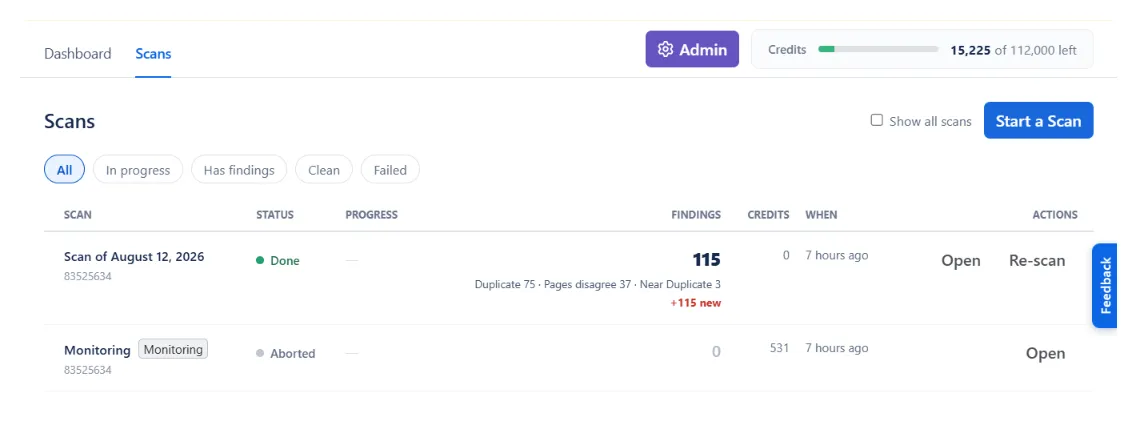
Two tabs run the whole product: Dashboard, the health board for the spaces you monitor, and Scans, the history of every run and where you start a new one.
Start a scan
Section titled “Start a scan”A scan is a scope you can re-run.
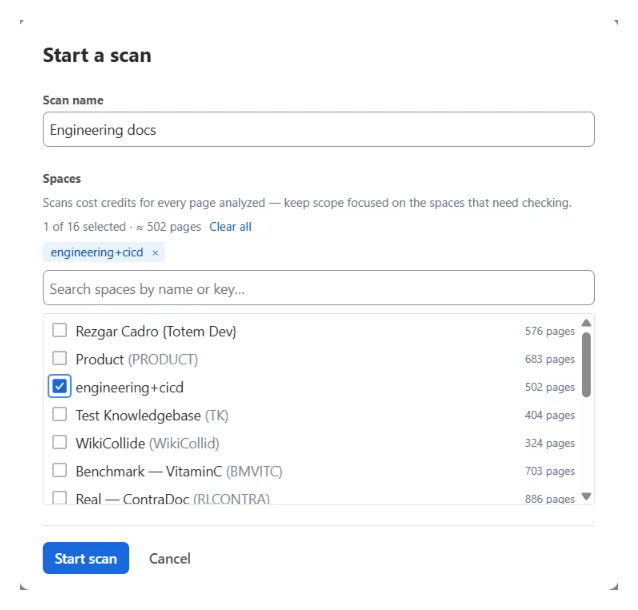
- Open the Scans tab and click Start a Scan.
- Fill in the two fields below.
- Click Start scan. It begins immediately and runs in the background.
| Field | What it does |
|---|---|
| Scan name | Whatever helps you find it later. |
| Spaces | The spaces to scan. Scans read them with the app’s access, granted at install — not your personal permissions (Security & data). |
Every enabled finder runs on every scan — there’s no picker. A new scan runs on demand: nothing happens until you start it. Give it a cadence afterward from the scan’s own Settings — on demand, daily, weekly, or monthly. Asking a page owner to decide a specific finding is a one-click action from the findings list — see Reading a finding below.
While it runs
Section titled “While it runs”The scan runs in the background — close the tab if you like. Findings stream in as they’re found, so you can start reading before the run finishes. The credits bar at the top ticks down as the scan spends credits; Credits & capacity explains what it’s spending them on.
Reading a finding
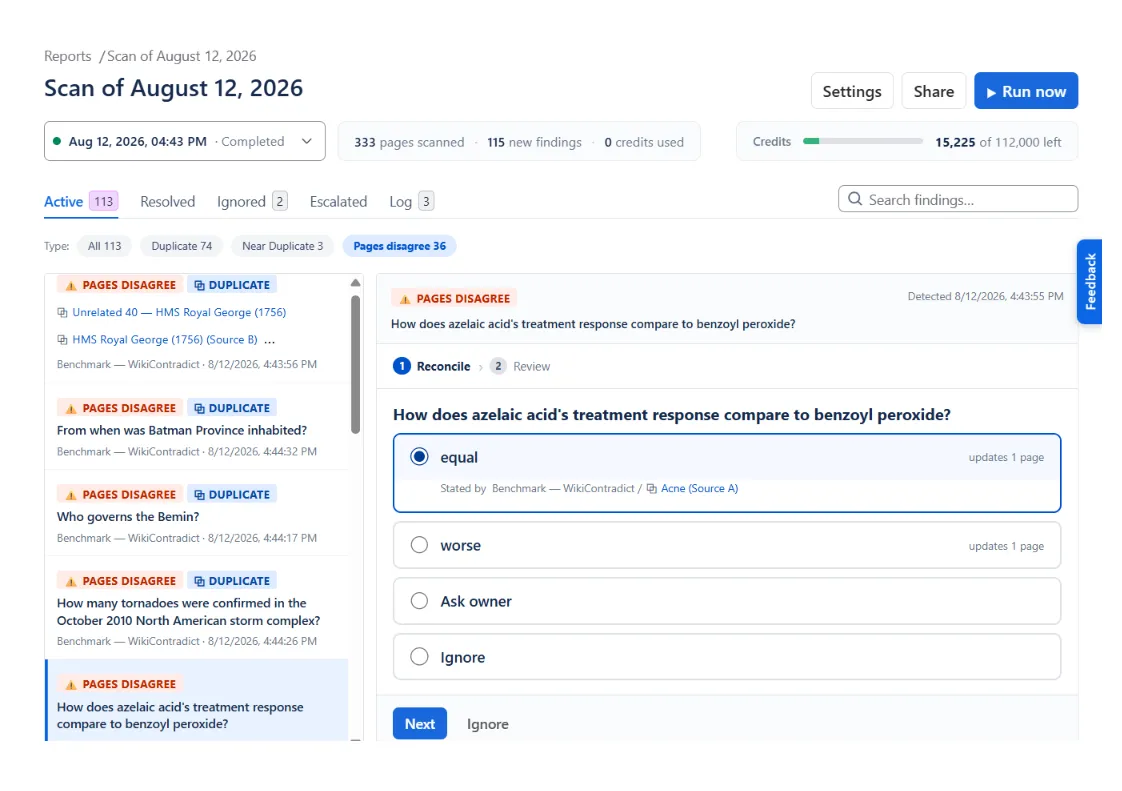
Section titled “Reading a finding”When two pages disagree about a fact, WikiFix frames the disagreement as a question — say, “What is the maximum upload size?” — and lists each page’s answer beside it, quoted verbatim and linked to the exact passage. You see what the pages actually say, not a score.
For each finding:
- Apply — pick the correct answer, and WikiFix rewrites every page that disagrees. The edit is made as you, so it shows in page history like any other edit.
- Ask owner — hand the decision over instead. WikiFix posts a comment on the page, anchored to the passage in question and @mentioning the page’s owner and the space’s admins, and the finding moves to the Escalated tab to wait on their answer.
- Ignore — a deliberate difference, or not worth fixing right now. It disappears from this scan and stays gone on later runs of it. Ignore freely: it only affects the scan you’re in, so another scan over the same pages still surfaces it, and if the disagreement changes — another page joins it, say — it comes back as a new finding.
Nothing changes in your Confluence without one of these explicit clicks.
Reverting
Section titled “Reverting”A content fix has a Revert button — one click restores the previous text, and because fixes are ordinary page edits, Confluence page history keeps the full before/after too. If the page changed again since you applied the fix, revert can come back partial — some pages restored, others not — or get refused outright; WikiFix tells you which.
A departed-owner reassignment reverts only once the previous owner is active again. While they’re still gone there’s nobody to hand the page back to — that’s the reason the finding fired in the first place — so the reassignment stays and Revert says why.
The page badge
Section titled “The page badge”Pages with findings show a WikiFix item in the byline, under the page title — so anyone who can edit the page sees there’s an open question about it without opening WikiFix. The byline shows only to people with edit access to the page: a read-only viewer can’t apply or revert a fix, so it stays out of their way.